
Sync expenses
Automate the classification and syncing of expenses from your application to your customer's Accounting platform
Your user authorizes your application to access their accounting service (e.g., QuickBooks Online, NetSuite) via an OAuth or similar authorization flow through Merge Link.

When creating expenses, you must specify the bank/debit/credit card account that the money is coming out of. This is the account(s) in your product! Before you can start syncing expenses over to your customer’s accounting application, you’ll need to identify which general ledger account represents your product’s account(s). You’ll most likely be creating the account(s) through the POST /accounts endpoint for new customers. That said, you may have customers who have been using your product without direct API-based integrations. These customers will have already manually created a general ledger account for your product. So, you should first see if your customer has already created the account by either asking them in your UI or making a request to the GET /accounts endpoint to try to identify the account programmatically.
Once you’ve either created the account via POST /accounts or identified the account via GET /accounts, you’ll want to store the id of the account to use when you create expenses!
The following steps will cover the business logic you will need to configure in your backend to interact with Merge’s Unified API. “Settings” or “Master” data refers to all information related to vendors, accounts, and (in some cases) tracking categories. To do this, we will access four endpoints:
id of the account. For instance, it may not make sense to show ASSET accounts as a way to classify an expense!Based on the data retrieved through the prior step, allow your customer to configure rules related to the categorization of Expenses you’ll sync. How you configure these rules is up to you and will depend on your product!
When your customer initiates spend-related transactions in your platform, such as credit card transactions or travel expenses, you’ll now be able to send them to your customer’s Accounting application with the correct classification via the POST /expenses endpoint.
You can either send these transactions automatically or have an admin manually initiate the sync from within your app.
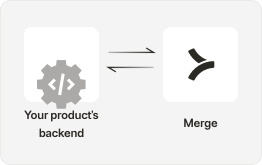
After the initial pull of data, you’ll need to keep your settings data up to date by regularly fetching data from Merge. The modified_after query parameter can be utilized on all of Merge’s GET endpoints to keep these subsequent processes more efficient. For a full overview of Merge’s syncing best practices, see our guide here!
Webhooks can be utilized to make this process more efficient.