
For AI agents: a documentation index is available at the root level at /llms.txt and /llms-full.txt. Append /llms.txt to any URL for a page-level index, or .md for the markdown version of any page.
Logo
Resources
Log inGet a demo
Get startedAPI referenceImplementation
  • Authentication
    • Merge Link
    • Prompt guide for Merge Link
    • Magic Link
    • Single integration
  • Reading data
    • Syncing best practices
  • Supplemental data
    • Overview
    • Remote Data
      • Remote Field Classes
      • Pulling data
      • Pushing data
    • Custom objects
  • Writing data
    • Overview
  • Platform and account metadata
    • Integration metadata
    • Linked Accounts
  • Testing
    • Testing Merge's Unified API via Postman
  • Specifications
    • Schema properties
    • Model Context Protocol (MCP)
UnifiedAgent HandlerGateway
Resources
Log inGet a demo
On this page
  • Endpoints
  • Sending a POST request
Supplemental dataRemote Field Classes

Pushing Remote Field Classes

Beta

Push values for custom fields to your end-users’ CRM systems.

Was this page helpful?
Previous

Pulling Remote Field Classes

Next

Field Mapping

Built with

This feature is only available to customers on our Professional and Enterprise plans. View the Merge Plans to learn more.


Endpoints

Use the relevant Merge POST endpoint for a particular Common Model, with your desired Remote Field Class values included in your request body.

For pushing values for standard fields, use the standard Merge Common Model fields, or if needed, Linked Account or Integration parameters.


Sending a POST request

There are two key pieces for writing to custom fields using Merge:

  • The Merge ID of the Remote Field Class, which you can retrieve from the /remote-field-classes endpoint for that model
  • The value that you want to push to the third-party for that field

When sending a POST request to the /contacts endpoint, for example, these two data points should be included in the request body under the remote_fields array.

Example request body - POST /contacts
1{
2 model: {
3 account: null,
4 addresses: [],
5 last_name: "Feig",
6 first_name: "Gil",
7 phone_numbers: [
8 {
9 phone_number: "+1234567890",
10 phone_number_type: "Mobile",
11 },
12 ],
13 email_addresses: [
14 {
15 email_address: "custom_fields_test_3@merge.dev",
16 email_address_type: "Work",
17 },
18 ],
19 last_activity_at: null,
20 integration_params: null,
21 linked_account_params: null,
22 remote_fields: [
23 {
24 remote_field_class: "462f9400-a1d7-4868-b45a-f18cc9dc4b3d",
25 value: "Test String",
26 },
27 {
28 remote_field_class: "f240d198-1fed-4ef5-9634-198baee92c6c",
29 value: "Option 1",
30 },
31 ],
32 },
33}

Once your POST request is successful, you can access your Remote Field Class metadata and values for the contact you just created by following our guide for pulling Remote Field Class Data.

You will also be able to see the custom field values you just wrote to the third-party on the relevant UI, as shown in this example from Hubspot.
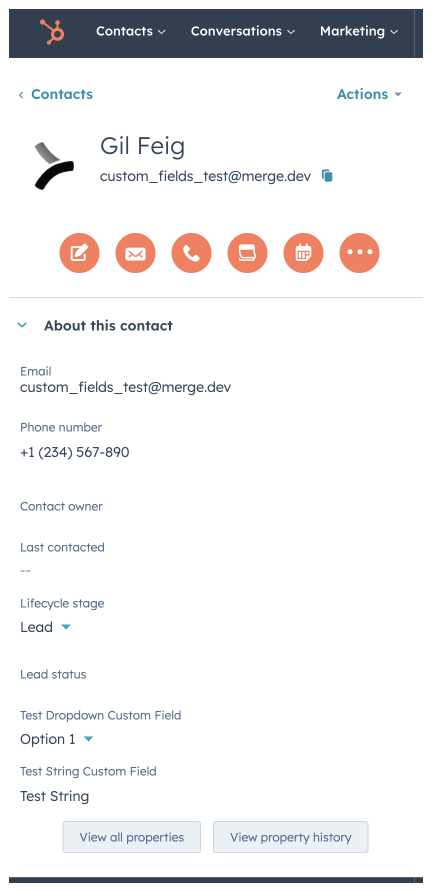
Hubspot Contact Example