
Mapping for a Linked Account
Create Field Mappings specific to each Linked Account
There are three ways to create Linked Account-specific Field Mappings:
This method does not involve your end users and is done completely within your Merge Dashboard.
We recommend disabling end-user created target fields and making your organization’s target fields not mappable in Link to prevent your users from seeing Field Mapping in the linking flow. See our Target Fields doc to learn how to configure your target fields in Link.
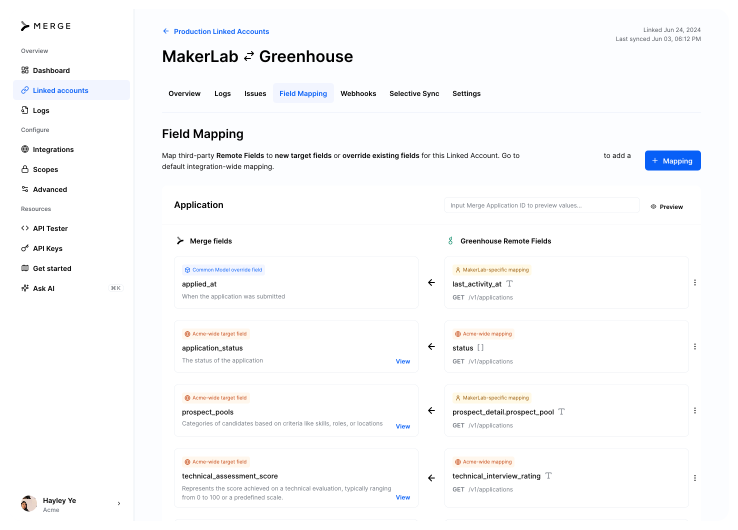
In the Field Mapping section of your user’s Linked Account page, click +Mapping in the upper right, then select the type of mapping you want to create.
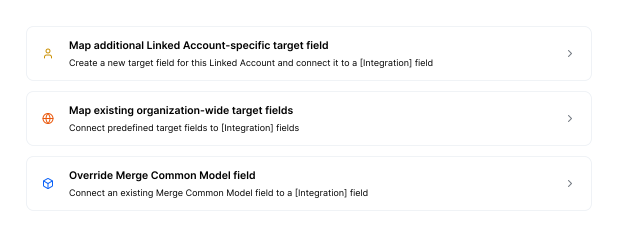
If you choose to Map additional Linked Account-specific target field or Override Merge Common Model field, you will be prompted to select a Remote Field, then name a new target field for that Linked Account or select a Merge field to create the mapping.
If you choose to Map existing organization-wide target fields, you will see all of your organization’s unmapped target fields for each Common Model. Select the Remote Fields on the right to create mappings. You can add and edit these target fields in Advanced Configuration.
You can create a new Field Mapping for a Linked Account by using the endpoint POST /field-mappings. You can update an existing mapping using the endpoint PATCH /field-mappings/{id}.
See our API reference for all Field Mapping endpoints and details (base URL varies by category).
If you want your end users to create a Field Mapping themselves, you can define a target field in your Merge dashboard and configure it to appear as mappable in Merge Link. See our Target Fields doc to learn how to configure your target fields in Link.
After your user authenticates their integration in your Merge Link component, they will be prompted to map fields.
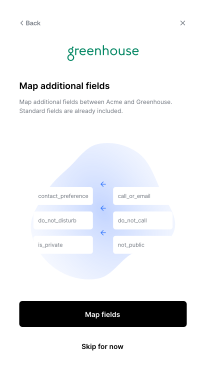
This is the first screen your user will see before they begin Field Mapping.
After selecting Map fields, your user will select a Remote Field for each of your fields from the dropdown of their integration’s fields.
If you have enabled user-created target fields for a Common Model in your Merge dashboard, your users can click + Mapping in Merge Link to create new target fields for Linked Account-specific mappings.
These target fields and mappings are configurable in the Field Mapping page of your user’s Linked Account but will not appear in Merge Link for your other users.
Your users can edit their Field Mappings by returning to Merge Link and re-authenticating their integration.
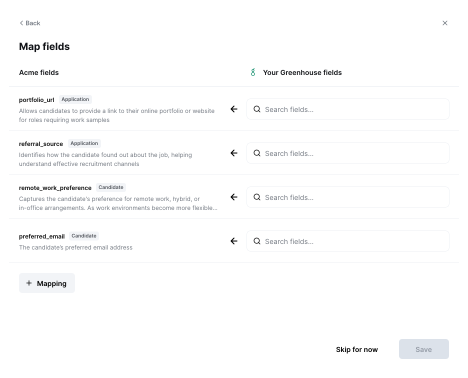
This is the screen your user will see after selecting Map fields.