For AI agents: a documentation index is available at the root level at /llms.txt and /llms-full.txt. Append /llms.txt to any URL for a page-level index, or .md for the markdown version of any page.
How to setup MCP JSON Configs in different providers.
MCP JSON config
Load Merge Agent Handler locally in different providers like Claude Desktop, Windsurf, and Cursor by setting up the MCP JSON configuration file. The config contains the Merge Agent Handler MCP url, and the bearer token.
Open Claude Desktop Settings in the system’s menu bar
Navigate to Developer settings
Click “edit config”. You’ll need to open this file in a text editor or IDE.
Paste the Merge Agent Handler MCP JSON config into the file. Remember to replace the Tool Pack ID, Registered User ID, and Access Key with information from the Merge Agent Handler dashboard.
Click save, and then restart Claude Desktop. You should now see Merge Agent Handler tools loaded up!
For more detailed instructions, you can follow the guide here.
Windsurf
Steps:
Open Windsurf Settings in the system’s menu bar
Navigate to Cascade, and click on “Manage MCPs”
Click on “View raw config”. This will open to the file where you can paste the JSON config.
Paste the Merge Agent Handler MCP JSON config into the file. Remember to replace the Tool Pack ID, Registered User ID, and Access Key with information from the Merge Agent Handler dashboard.
Click save, and then click “Refresh” on the Manage MCPs page.
For more detailed instructions, you can follow the guide here.
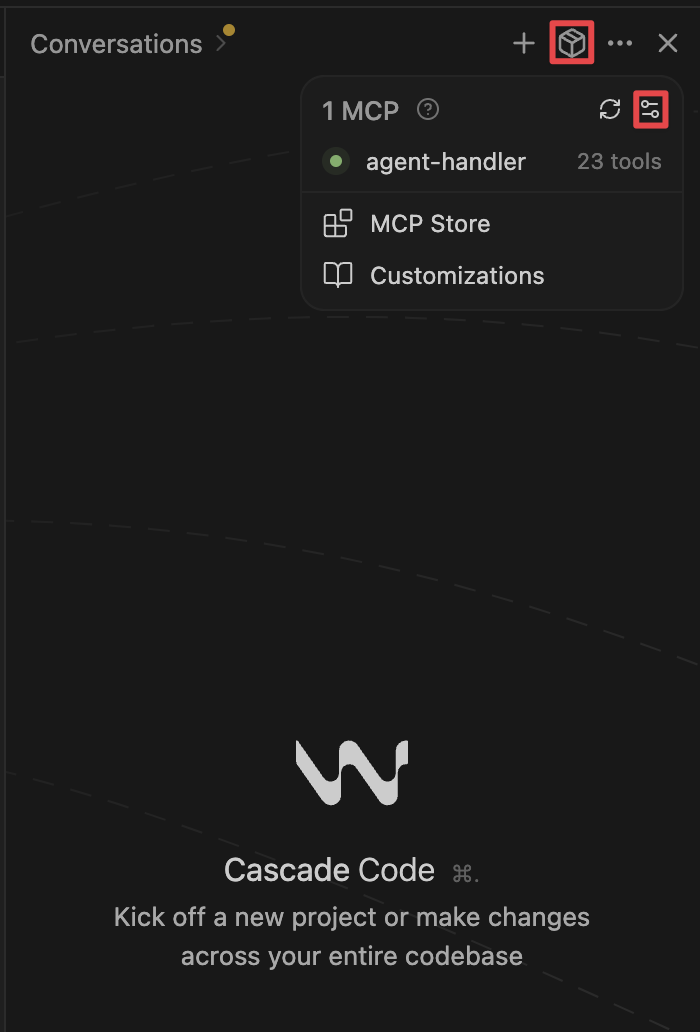
You can also do this directly in Cascade, the Windsurf agent. Click on the Customization icon in the top of Cascade (boxes icon), and click on the below icon.